SiriusMsg, an agent for the messages you share
SiriusMsg is a native Mac app that lets an agent read and answer the Messages conversations you choose to share, and it keeps every other conversation out of reach. You decide which chats are shared, which agents may use them, and whether those agents may reply. There is no SiriusMsg account to sign in to, and your conversations are not uploaded anywhere.
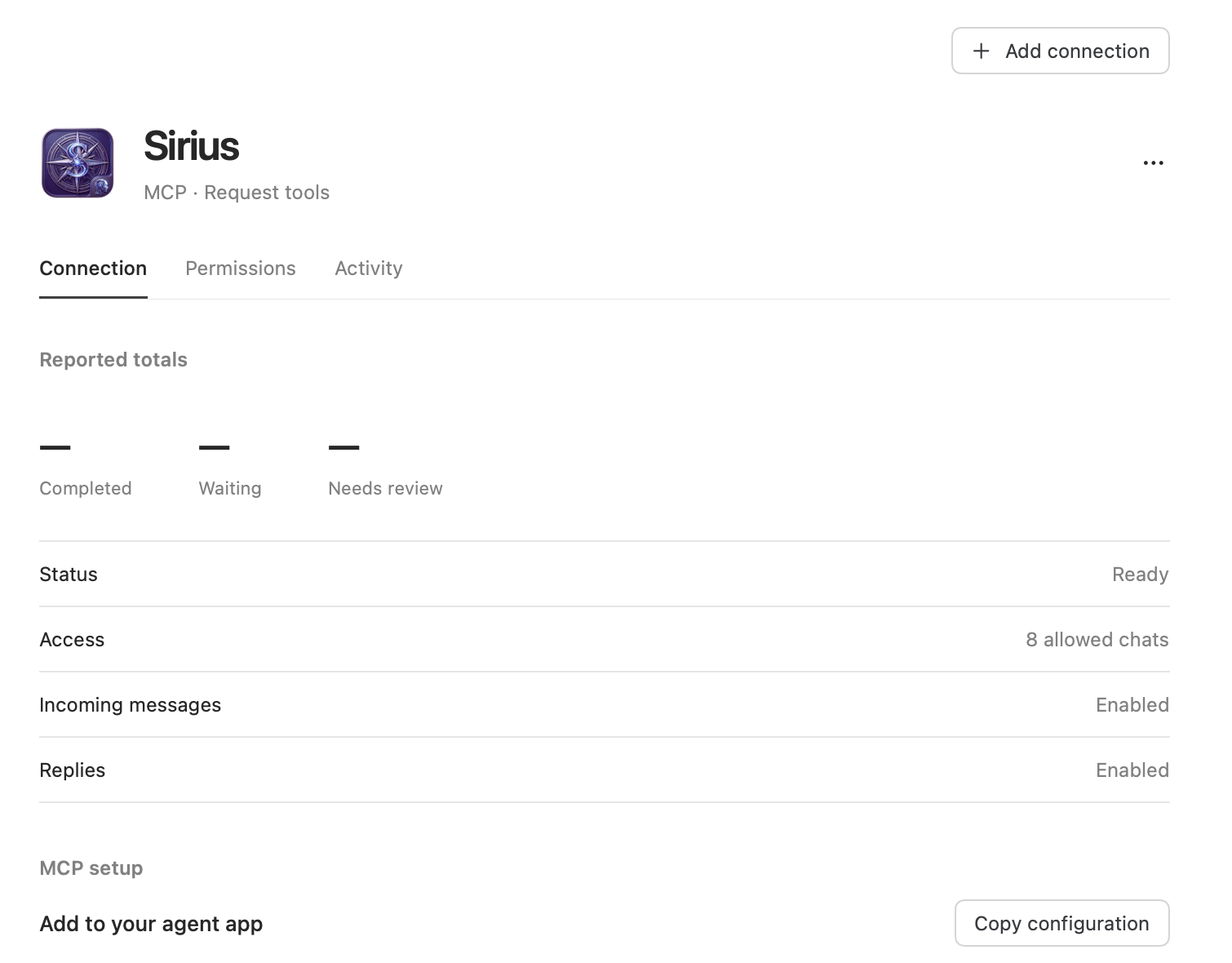
The window holds the sharing list, the connections, and the record of what the bridge did. The bridge is separate: it keeps watching your shared conversations after you close the window, so an agent can answer while you are doing something else. Start it from the menu bar item, or turn on Run bridge at login in Settings → General.
It starts closed
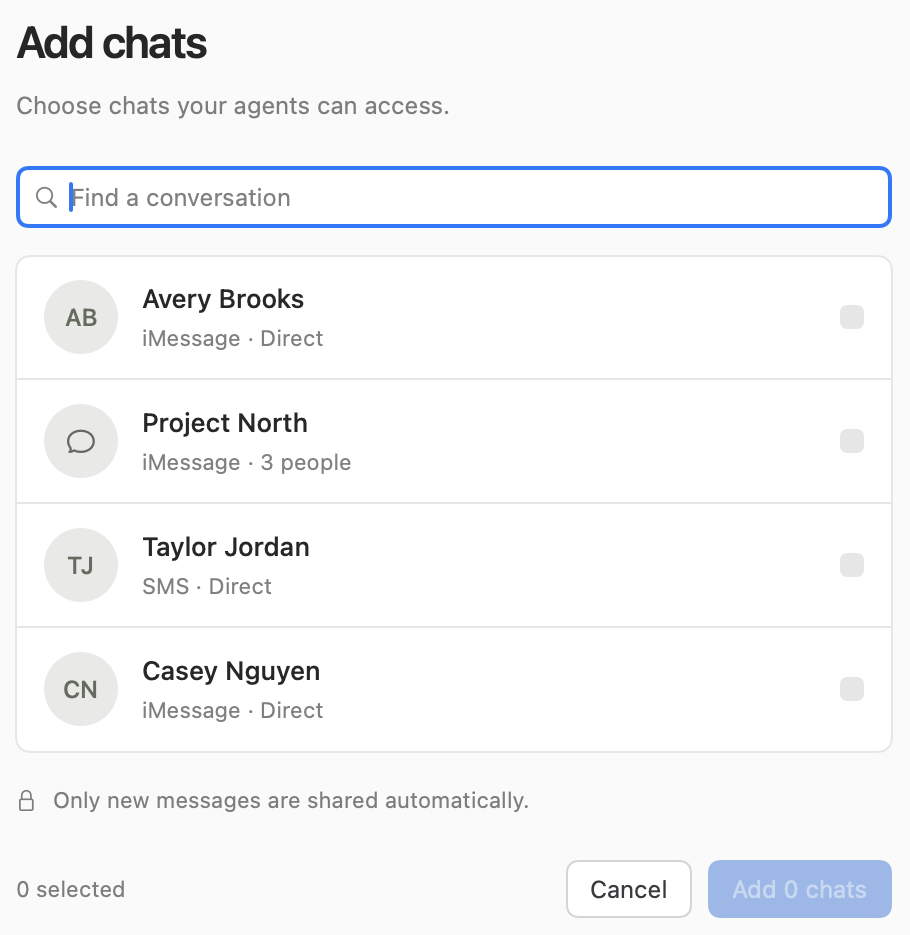
Nothing reaches an agent until you share a chat. Add chats lists the conversations that are not shared yet, and only the ones you tick are added, so the list you have works on is the list you chose.
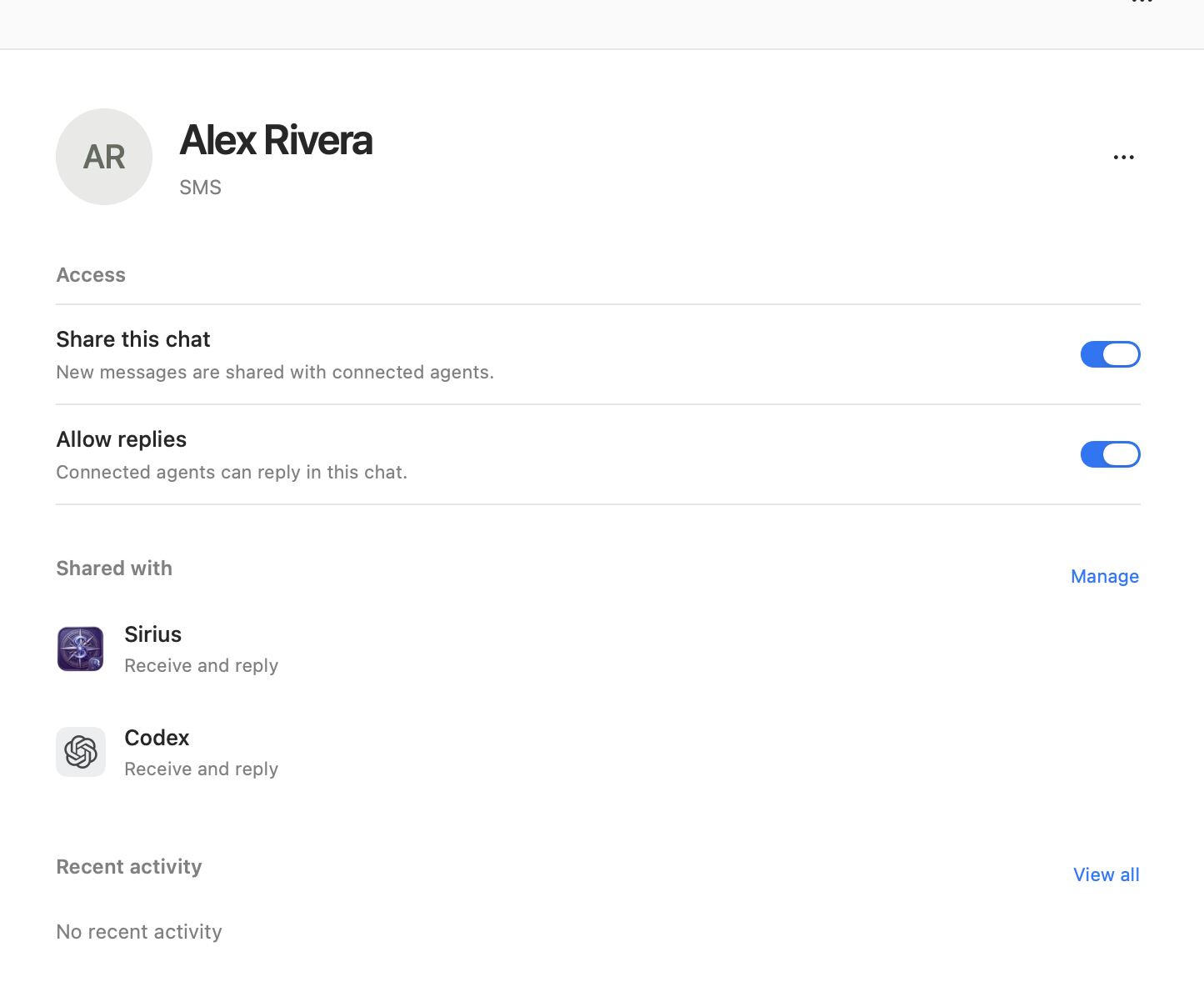
Sharing starts a conversation from that moment rather than handing over a transcript: messages from before you shared are not replayed. Each shared chat then has two switches. Share this chat lets new messages in that conversation reach the connections that can use it; turning it off removes the chat from sharing and stops new messages, while per-connection choices are kept for whenever you share it again. Allow replies decides whether an agent may answer in that chat, and it is available only while the chat is shared — which makes it the switch to reach for when you want an agent to read a conversation and never write in it. Removing a chat stops new messages and does not take back anything already delivered.
Every connection is its own agent
A connection is a program you have given access to your shared chats, and SiriusMsg keeps connections separate on purpose: each one has its own limits, its own queue and its own history, so one can be widened or revoked without touching the others.
A Codex connection answers incoming messages by working in a new task or in an existing task you pick. That is the one to choose when you want a message to start work by itself. An MCP tools connection runs the other way: your agent calls SiriusMsg when it wants something, and nothing starts on its own. Its configuration is the helper path and its arguments, with no credential in it; the helper authenticates with the local access token stored in your account, so another program on the Mac cannot talk to the bridge just because it is running.
Under Permissions, a connection can be narrowed from every shared chat to a specific list, with incoming messages and replies switched independently. A chat is available to every connection until you limit it.
Every reply reports what could be proved
Messages automation is a separate permission from reading, and sending has two outcomes that are kept apart. A reply is confirmed when the app re-read the conversation and saw the change. Unconfirmed means Messages accepted the request but the app could not prove it landed. Rejected means it did not go out. An unconfirmed reply is never resent on its own, and neither is a rich action.
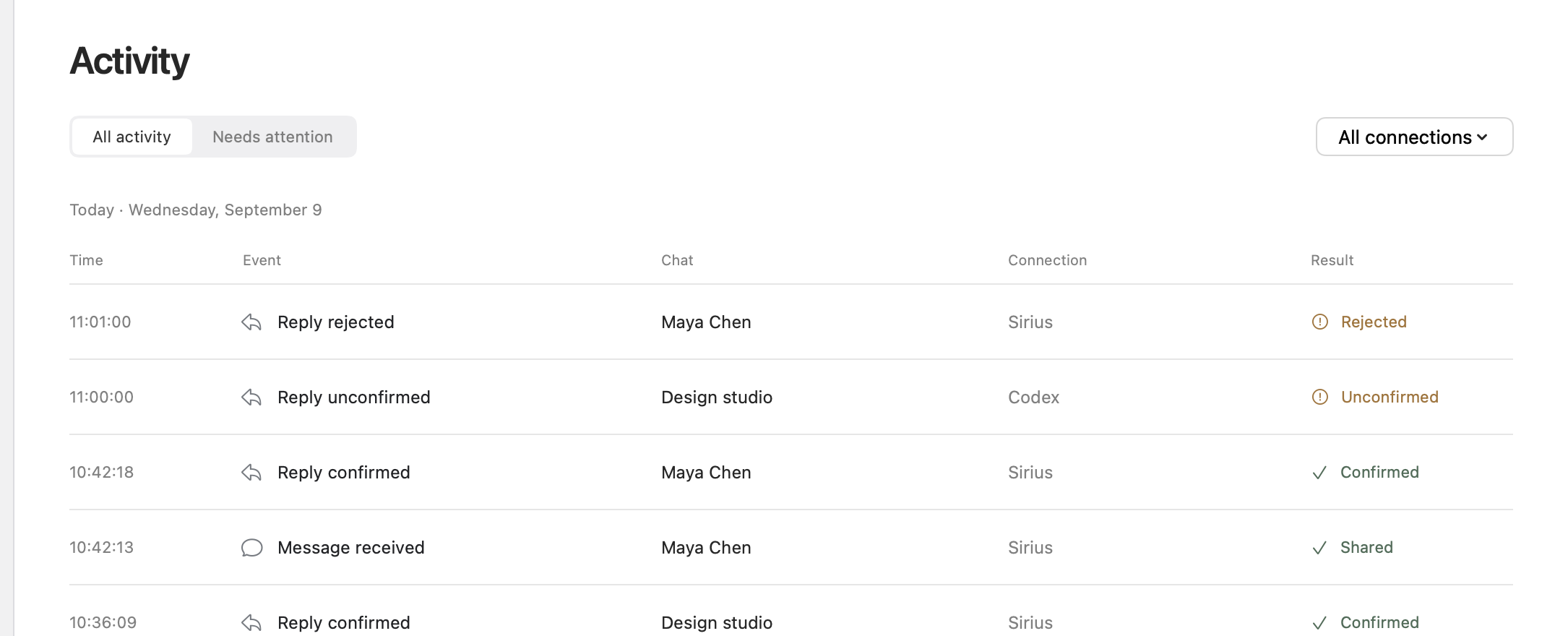
Activity is the record of what the bridge did with your shared chats: when a connection opened or closed, when a message was shared with an agent, and how a reply ended, including the outcomes that need review. It is a record of events rather than of conversations, and the export keeps the same rule. Needs review is the honest outcome: the bridge could not prove what happened, so it stopped instead of guessing. Reviewing an item clears it from the queue, and nothing is marked successful that was not.
Permissions belong to the signed app
macOS keeps Messages' own data behind Full Disk Access, and the bridge needs that permission to notice that a shared conversation has a new message. It reads; it does not send. Messages automation is what lets SiriusMsg ask Messages.app to send a reply, and it is checked when a reply is actually dispatched. Accessibility is only for the optional rich actions — reactions, threaded replies, message effects, edits and unsends — and it is not needed at all until you turn rich messaging on in Settings → Rich Messaging.
Every permission belongs to the signed SiriusMsg app and its bundled agent, which macOS tracks by their signed identities. A permission granted to a copy in Downloads or inside a disk image does not apply to the copy you run from Applications, and the checks in Settings → Privacy & Access report what the running bridge can actually do.
A record of events, not conversations
Message bodies stay out of status, activity, logs and the diagnostic summary. Those surfaces carry states, counts, versions and permission results — never anything you or someone else wrote. When you need support context, Copy Privacy-Safe Summary in the menu bar item or Copy diagnostic summary in Settings → Diagnostics gives you the version and the checks, and it is worth reading before you paste it anywhere. Attachment files are read only when a connected program asks for one, and only for a chat you shared.
Readiness, not good intentions
Settings → Diagnostics → Validation and recovery runs the readiness checks: identity, permissions, delivery, recovery and privacy. Readiness is the everyday check — it confirms the bridge, the two system permissions, the sharing state and the pieces that survive a restart — and a failed check offers its own fix. Release validation does that pass and then exercises real delivery and recovery, including sending to a chat you nominate. Both paths record what the signed app and its bundled agent actually observed.
Sirius, an agent that works on your Mac
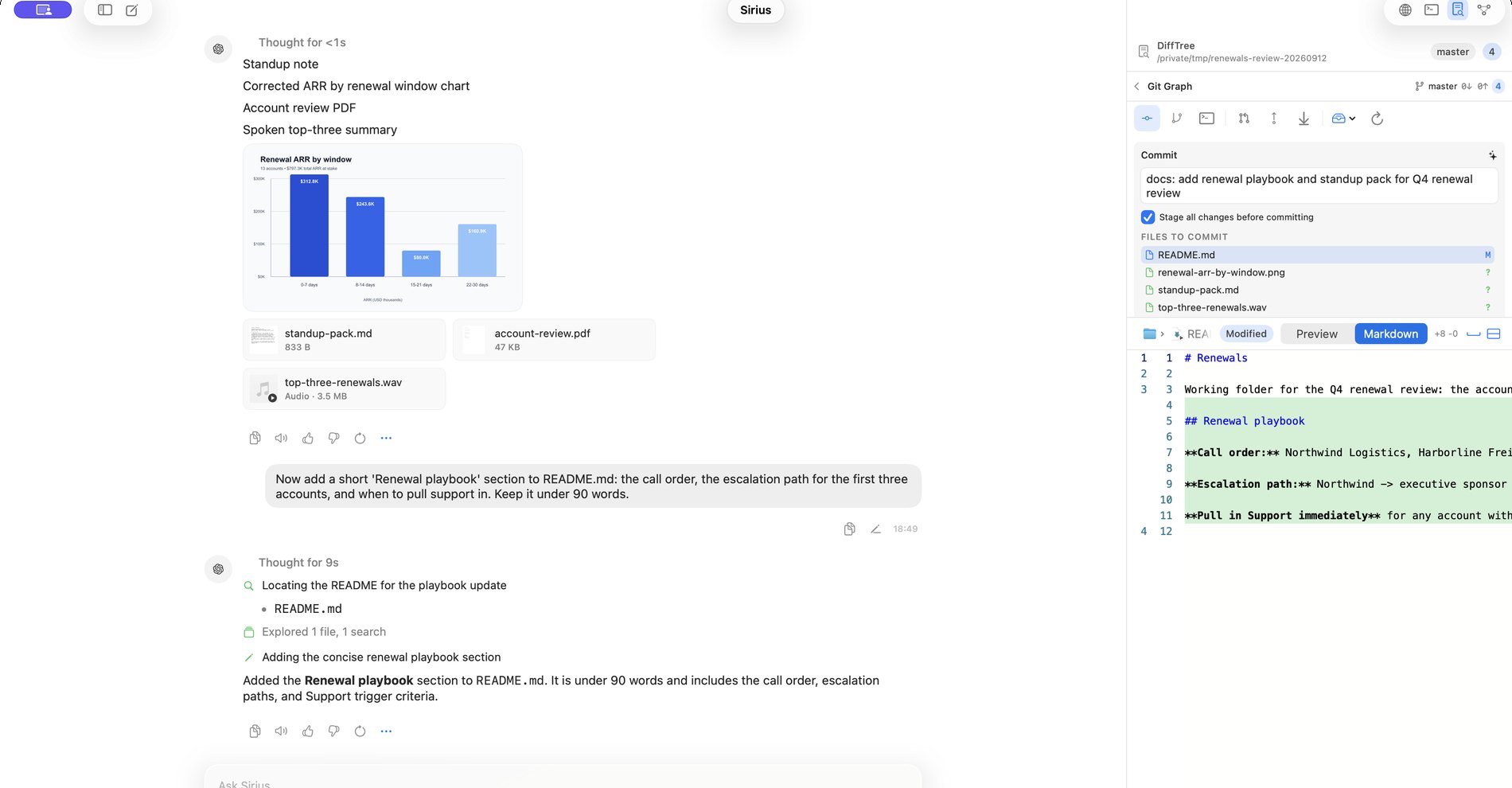
Sirius puts an AI agent to work on things you already have: a folder of code, a web page, a spreadsheet, a recording, another app on your screen. You choose the account it thinks with, the folder it can see, and which actions it may take without asking. It opens one window per conversation, and each region has one job — the sidebar for chats and projects, the transcript for the conversation and the agent's working notes, the composer for what you write, and the right panel for the browser, the terminal, diffs and memory.
Three modes, decided per turn
The control at the leading edge of the composer sets how much structure a turn has, and it applies to the turn you are sending rather than to the chat. Agent reads, writes, runs commands, drives the browser panel, and asks to act when policy requires it. Plan is restricted to reading, searching and asking, and the turn has to finish with a plan you approve, edit or reject — a plan turn cannot quietly start editing. Ask reads and answers without changing files, running commands, or acting on a page. A chat keeps its own folder, account, plan, goal, memory and transcript, and the sidebar can hold several live sessions at once.
Plans and goals that outlive the turn
A plan is a list of steps with an owner and a status, stored with the chat and shown as a checklist while the chat waits for you. Steps are marked in progress, done or blocked, and a parent step takes its status from its children, so a finished-looking parent cannot hide an unfinished child. A goal is a completion contract that survives turn boundaries: ask for one, and the status bar shows what the goal is doing while the Goal panel offers Pause, Resume, Clear and Limits. If a goal cannot prove it is done, it stays unfinished and says so.
Send another message while a reply is already running and it does not start a second turn. It becomes a steer, delivered inside the running turn at the next safe point, or an interrupt, which delivers the same message and then asks the running reply to stop. Long commands keep running after the reply that started them, with a panel that shows each one and its output.
What you can ask for, and what comes back
Most of what you ask for is unglamorous: an answer grounded in the files the agent actually opened, a web page driven in the browser panel and handed back to you when you want it, a build that keeps running while you work on something else, and the same conversation later, because chats, plans, goals and memory persist on the Mac.
A reply does not have to be text. It can render a chart, a sortable table, metric tiles or a timeline, and files move both ways: the agent reads a document, a spreadsheet or a recording from the workspace, and hands back a chart, a written note, a PDF or a summary it spoke aloud.
You review every change
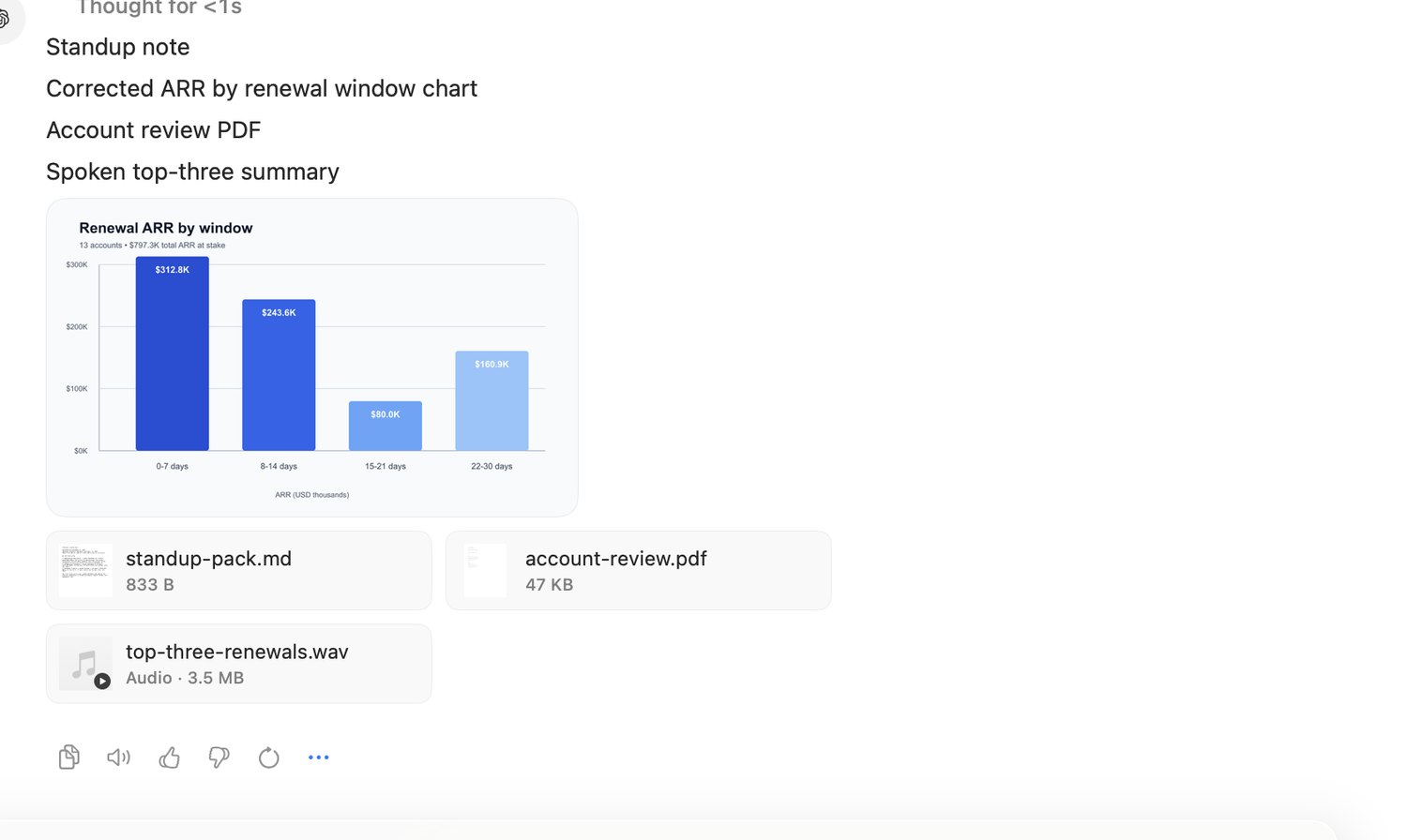
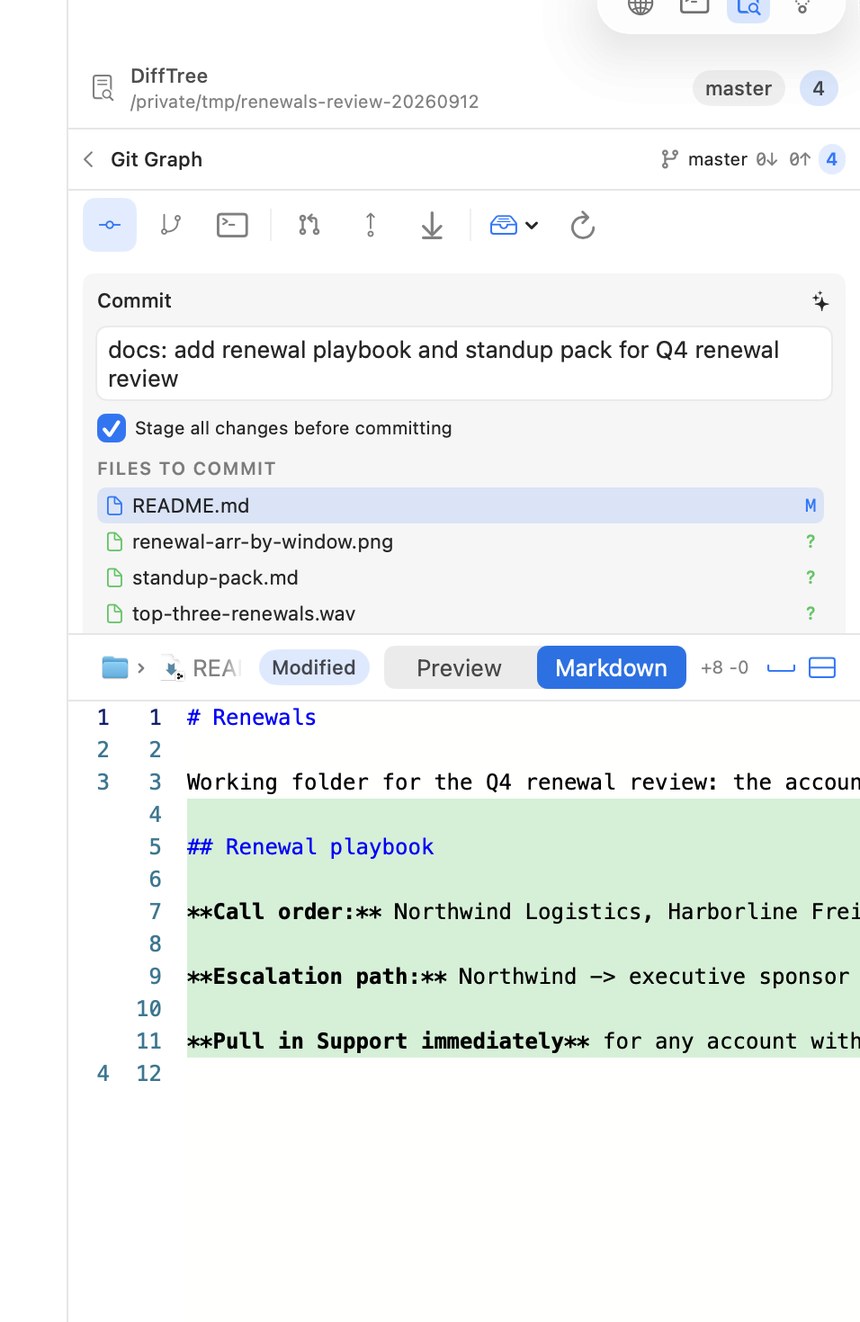
Diffs in the right panel is the review surface. It reads the workspace's git state and shows three scopes — the working tree, the staged changes, and the branch against a base — with a file tree and a side-by-side or inline view. When you are ready, the panel drafts a commit message from the diff itself; you edit the message and the files included, and commit from the same panel. Nothing is committed automatically, and nothing is pushed automatically.
Git is not reimplemented: the agent runs git in the workspace the way you would, and the panel reads the result. A project can also be a git worktree, so two chats can work on two branches without sharing a checkout. Your files stay where they are; what lives in the app's own folder is the record around them — chats, memory, plans and goals, terminal transcripts and logs.
Tools, skills, and sub-agents
The toolbox is wide. For files and folders it reads with line numbers, writes without truncating a half-finished file, edits large files in place, searches by glob or regular expression, edits Jupyter cells where they sit, and reaches the rest of the Mac through Spotlight when the file you want is somewhere you did not point at. Commands are checked before they run, anything dangerous waits for approval, and independent steps can run as a task graph with each node's result reported separately. Reading the web and acting on the web are separate abilities, so the lighter one gets used unless a page needs real state.
Outside its own folder the agent can drive Apple apps that publish a scripting dictionary — Calendar, Mail, Notes, Reminders, Finder and others — and for apps that do not, it can work their interface and screen directly. Computer use stays off until you switch it on, and you grant it one app at a time.
Skills are written procedures stored as a folder with a SKILL.md file, and a skill that needs a credential asks for a grant for that turn rather than a permanent copy of the secret. Model Context Protocol servers extend the agent with tools it was never shipped with, local or remote, with each server getting its own row, permission preset and probe result. Work that suits a second agent — a review pass, a verification of a claim, a long search — can be dispatched as a sub-agent with its own instructions, tools and budget, including coding-agent command-line tools you already have installed.
Approvals, credentials, and what leaves your Mac
An approval prompt names the exact thing being requested — the command, the file, the app, or the payment — and nothing is retried behind your back if you decline: a denial is recorded and shown to the agent as a reason, so it can choose a different approach instead of trying again. Four presets set how much asking happens. Auto runs ordinary calls, has a second model review consequential ones, and returns blocked calls with a reason. Permissive allows ordinary calls without review. Strict asks first for everything that is not exempt. Read only denies writes and side effects outright.
Keys and service accounts live in the Mac keychain, are never written into the settings file, and are never handed to the agent as text; a tool that needs a secret receives it at the moment it runs. Only two things leave the Mac: the messages and files you send to the account you chose, because that is how a hosted model answers, and the reports you explicitly send from the Feedback pane. Memory, logs, terminal transcripts, browser history and receipts stay on the machine, and with a local model selected the conversation never leaves it at all.
Where SwiftPython runs
Both products are Mac apps that need Python, and neither asks you to install it. The interpreter and the worker process it runs in are inside the signed app, and the app will not borrow the Python on your Mac instead. A build that takes its runtime from anywhere but the commercial package is refused.
SiriusMsg's Python is adapter code. It looks at a message the app handed it and decides what to do with it. Adapters run in a worker pool, so one of them going wrong cannot take the window down with it, and an adapter can ask the app for the few things only the app can do: send a reply, fetch an attachment's bytes, report its own health. A worker that stops responding is replaced.
Sirius needs Python for the agent's own work, and takes the same release. The interpreter inside that app is the one you would pin in yours.
The chapters cover the parts: worker pools, Python → Swift callbacks, retained objects, and packaging a matched runtime.
More of the site to see
Two products on this runtime. Watch the native CLI demonstrations for Metal/Python ownership and verified Swift callbacks, watch our Python on iOS preview for four native NumPy workers in an iPad app, or read the release you would pin.
The screenshots on this page are from the current development builds of both apps, which are in preparation for release. The published builds predate these interfaces. For the current SiriusMsg build, see its downloads and release notes.